How-To Guides
How to Turn Your Transcript into YouTube Chapters Automatically
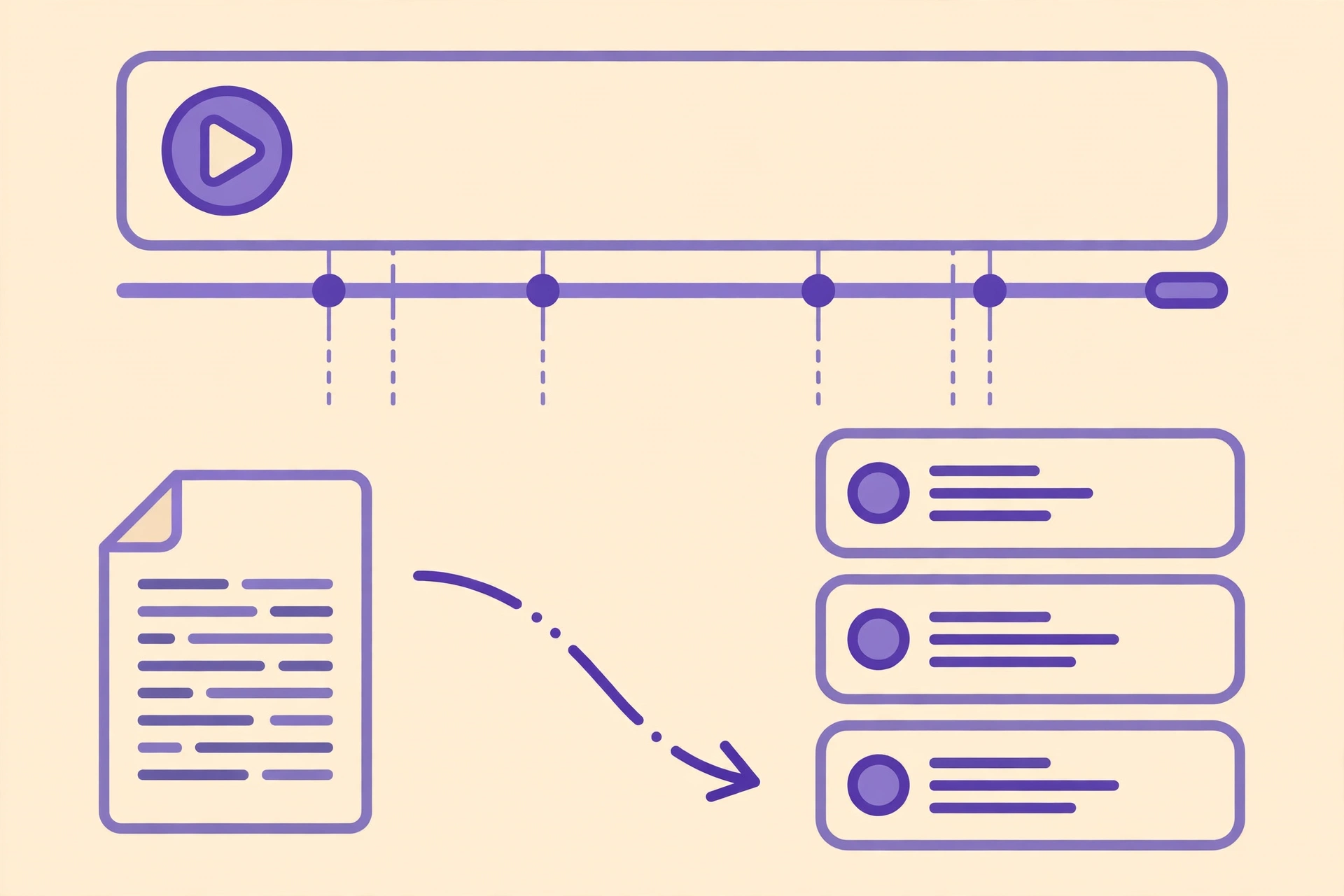
YouTube chapters turn a long video into a skimmable one. Instead of scrubbing blindly through a 20-minute tutorial, a viewer sees a labelled timeline — "Setup", "The Fix", "Results" — and jumps straight to the part they need. That is good for viewers, and it is good for you: chapters keep people watching instead of leaving, and they give YouTube clean, labelled sections of your video to show in search results.
The fastest way to build chapters is not to rewatch your video and note down times by hand. Your transcript already has the map. Every time you change topic, the transcript changes topic — and every line of a timestamped transcript carries the exact time that change happened. If you can read a transcript, you can build chapters in about ten minutes, with no editing software and no extra tools.
Why chapters are worth ten minutes of your time
Chapters do three concrete jobs. First, they protect retention: a viewer who lands on your video looking for one specific answer can jump to it instead of bouncing when the intro runs long. Second, they feed search. YouTube and Google can surface individual chapters as "key moments" in search results, which means your video can rank for a sub-topic it only covers for two minutes. Third, they make long videos feel shorter — a labelled progress bar tells the viewer how much is left and what is coming, which is exactly the information that keeps someone watching.
- Retention: viewers who find their answer stay; viewers who cannot find it leave.
- Search: chapters can appear as key moments in Google and YouTube search.
- Navigation: returning viewers can re-find the one section they need in seconds.
YouTube can also generate chapters automatically, but auto-chapters are a rough guess: the titles are generic, the breaks land in the middle of thoughts, and you have no control over wording. Your own chapters, built from your transcript, are accurate by construction — you said the words, so you know where each section starts.
Step 1: Get a timestamped transcript
Everything in this workflow starts with a transcript that has timestamps. Without timestamps, you are back to guessing times by scrubbing through the video. With them, each topic change comes with its start time attached.
- Use YouTube's own transcript. Open your video, click the three dots under the player, and choose "Show transcript". YouTube shows the auto-generated transcript with timestamps. It is good enough for finding chapter breaks, even if a few words are wrong — you only need the times, not perfect text.
- Or generate your own. If you want a cleaner transcript, run your video's audio through Captionbench's free browser tool — it transcribes locally on your device and exports a timestamped SRT or plain-text transcript. This is the better option when YouTube's auto transcript is messy, or when you want the transcript before the video is even uploaded.
- Clean it lightly. Skim the transcript once and fix the words that matter for navigation: your product names, the names of tools and techniques, and any section headings you spoke out loud. You do not need to proofread every line — just enough that you can recognise each section when you read it.
One transcript can serve three jobs at once: chapters, captions, and a description you can reuse. If you already generate an SRT for captions, you already have the raw material for chapters — do not generate a second transcript for this.
Step 2: Find the chapter breaks in your transcript
Read through the transcript from the top and mark every place where the topic clearly changes. You are looking for the sentences where you move on: "Now let's look at the settings", "The second problem is…", "Here's what happened when I tested it". Each of those is a chapter start, and the timestamp on that line is your chapter time.
A few rules keep the result usable:
- Start at 0:00. YouTube requires the first chapter to begin at 0:00. Your first chapter is usually your intro or the video's main topic.
- At least three chapters. YouTube needs a minimum of three timestamped chapters before it shows them at all.
- Each chapter at least 10 seconds long. Shorter segments are rejected, so merge tiny asides into the chapter around them.
- Aim for 5–10 chapters on a 10–20 minute video. Fewer than that and the video still feels like one long block; more than that and the timeline turns into clutter. A 30-minute deep dive can carry 10–12; a 6-minute video is fine with 3–4.
Do not split on every sub-point. If you spend 40 seconds on an example inside a larger section, that example is part of the section, not its own chapter. Chapters should match the way a viewer thinks about your video — the big beats, not the footnotes.
Step 3: Write chapter titles that earn the click
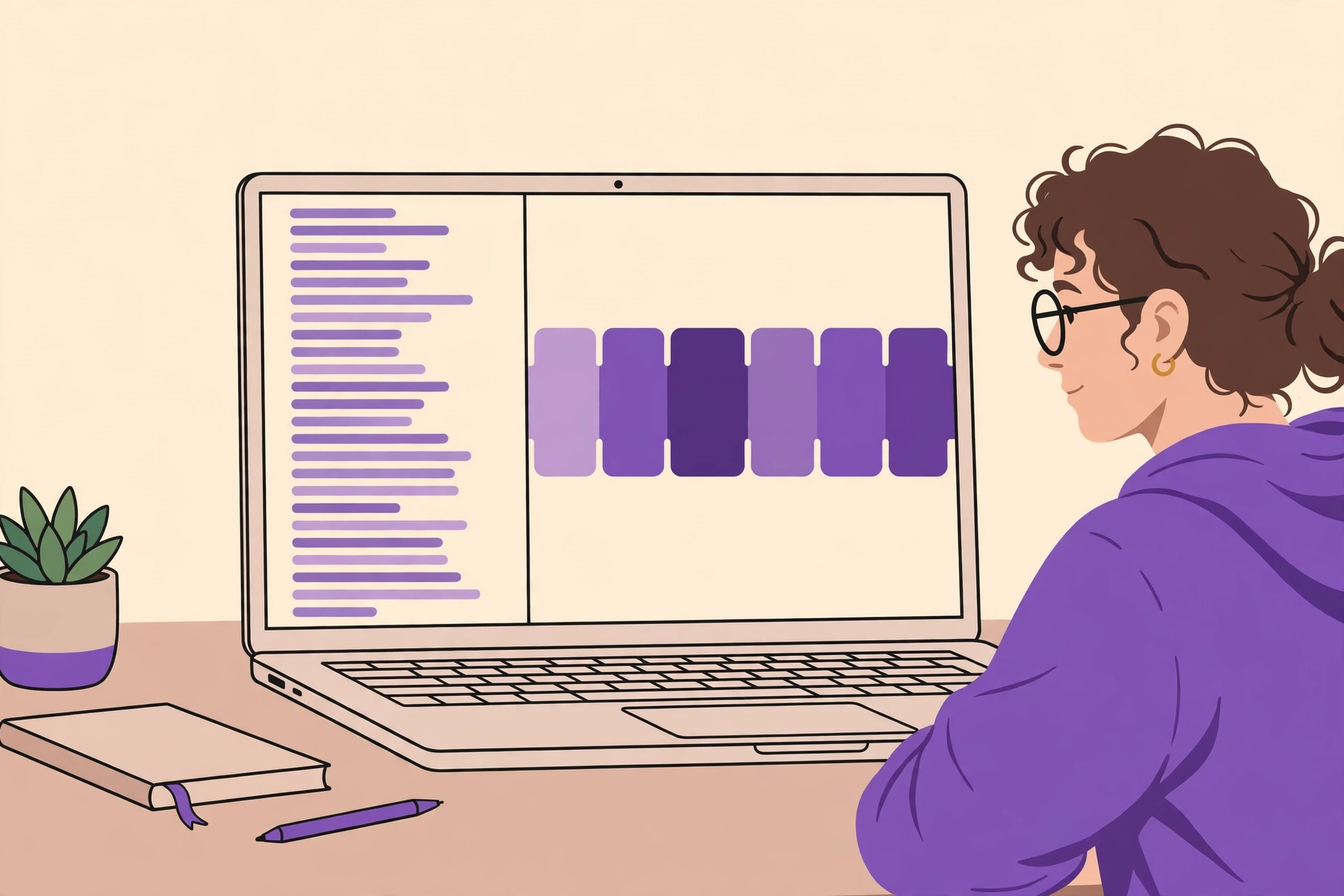
A chapter title is a promise about what the next few minutes contain. The best titles are short, specific, and honest — two to five words that a viewer can read at a glance on the progress bar.
- Be specific, not clever. "Fixing the audio sync" beats "The tricky part". "Export settings for YouTube" beats "Wrapping up". Viewers scan chapter titles the way they scan search results.
- Put the keyword first. If a section is about colour grading in DaVinci Resolve, lead with that phrase — it is what the section is about, and it is what a searcher is looking for.
- Match what you actually say. A chapter titled "Free method" that leads into a paid tool is the fastest way to lose trust. If the content changes, change the title.
- Keep the same style across chapters. Either all titles are plain descriptions or all are questions — mixing styles makes the timeline harder to scan.
Write your list as plain text, one chapter per line, in this format:
0:00 Intro
0:48 Why chapters matter
3:12 Getting the transcript
6:05 Finding the breaks
9:30 Writing the titles
12:40 Adding chapters in Studio
That list is already your finished product. The only thing left is to put it where YouTube can read it.
Step 4: Paste the chapters into your description and check them
YouTube reads chapters from your video description, so there is nothing to upload and no special tool involved.
- Open YouTube Studio. Go to Content, click your video, and open the description box.
- Paste your chapter list. Put it near the top of the description, above your links and socials, so viewers see it without expanding anything. Keep the exact format: timestamp, a space, then the title — one chapter per line.
- Save and wait a minute. Open the public video page and hover over the progress bar. You should see your chapter titles appear as labelled segments. If they do not show, check the three rules from Step 2: first chapter at 0:00, at least three chapters, each at least 10 seconds long.
- Turn off auto-chapters if they conflict. In YouTube Studio, under Settings → Channel → Advanced, or in the video's details, you can disable automatic chapters. If your manual chapters are not showing, auto-chapters may be overriding them — turning them off lets your list take over.
One detail worth knowing: chapters also work on videos that are already published. You can add them to your back catalogue the same way, and older videos with new chapters often see a small lift in watch time because returning viewers can finally navigate them.
Common mistakes to avoid
- Too many chapters. Twenty chapters on a ten-minute video is noise. If a chapter is under a minute long, it probably belongs inside its neighbour.
- Vague titles. "Part 1", "Part 2", "Part 3" tell the viewer nothing. If you cannot name what happens in a section, the section may not be a real section.
- Chapters that drift from the content. If you re-edit a video, re-check the timestamps. A chapter that starts 30 seconds late points viewers at the wrong moment.
- Forgetting 0:00. A list that starts at 0:48 is ignored entirely. The first line must be 0:00.
- Relying on auto-chapters alone. They are a fallback, not a strategy. Five minutes with your transcript produces chapters that are more accurate and more useful than anything automatic.
Key takeaways
- Your transcript already holds your chapter map — every topic change comes with its exact timestamp.
- Chapters need a 0:00 start, at least three entries, and at least 10 seconds per chapter.
- Write short, specific titles with the keyword first; vague titles help no one.
- Paste the list into your video description — no upload, no tool, and it works on old videos too.
Ready to make your transcript? Generate free timed captions with Captionbench right in your browser — no account, no uploads, SRT/VTT/TXT export included.