Roundups
Best Free Speech-to-Text Apps in 2026 (Tested)
Free speech-to-text in 2026 is genuinely good — good enough that most people never need to pay for it. The speech recognition built into your operating system, your browser, and a handful of free tiers now handles clear English with accuracy that would have cost real money a few years ago. The catch is never the quality. It is the limit: minutes per month, minutes per recording, or the fact that the tool only works inside one app.
We tested the free options that matter — the built-ins you already own, the genuinely free tiers, and the private on-device tools — by dictating drafts, transcribing real recordings, and reading each vendor's own pricing page (checked November 2026). Here is what is actually free, where each app stops, and which one fits your work.
First, two different jobs: dictation vs transcription
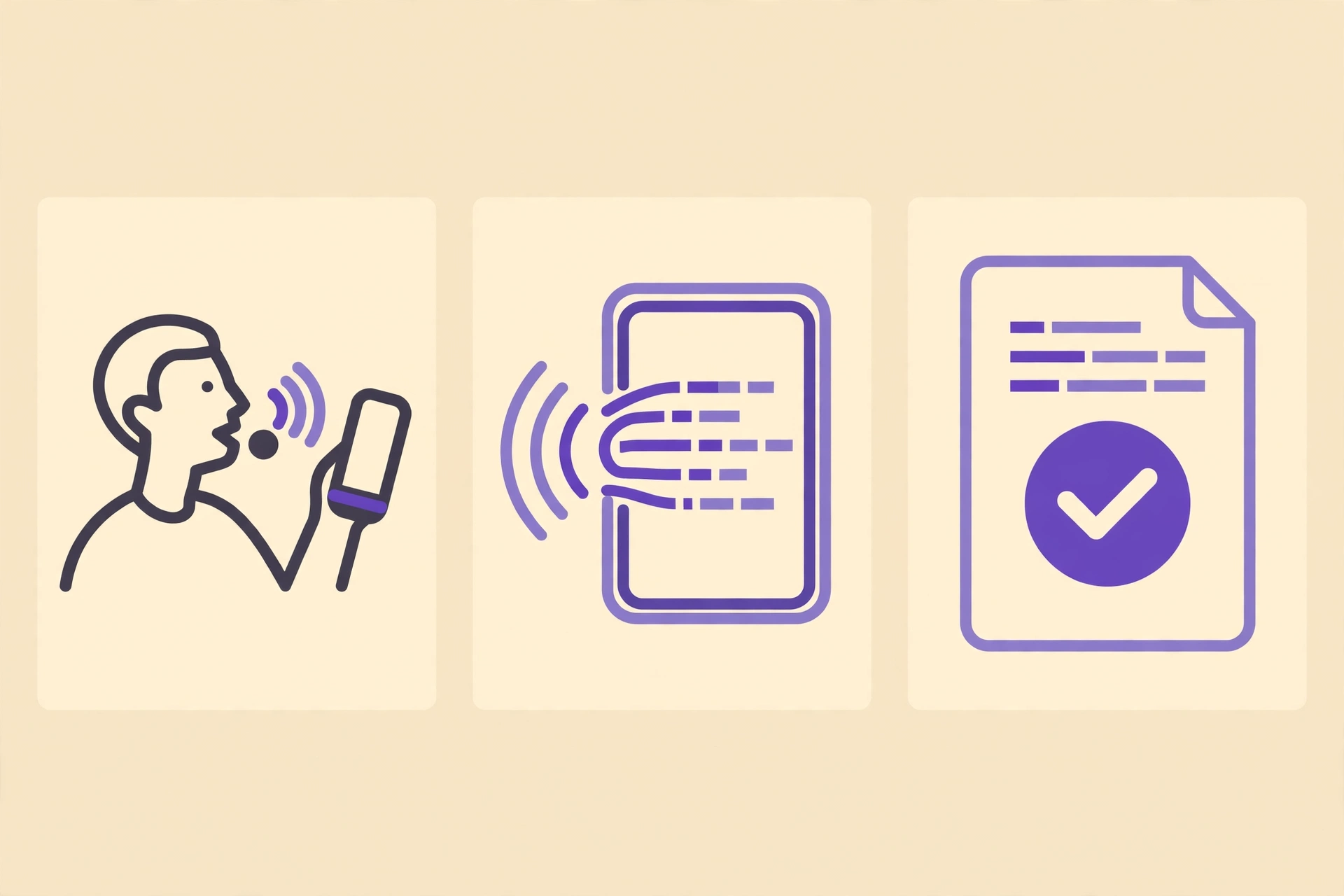
Most "best speech-to-text app" lists mix up two different jobs, and picking the wrong kind is the most common mistake. Dictation means talking while you type: you speak, words appear in whatever document or field is open. Transcription means turning a recording — a meeting, an interview, a voice note — into text after the fact.
- Dictation is for writing emails, first drafts, and notes hands-free. The built-ins below are excellent at it, and they are free forever.
- Transcription is for recordings and meetings. This is where free plans come with minute limits, and where choosing the right tool actually matters.
- Captions are a third job — timed text for video. If that is what you need, a transcription tool gives you the words, but you still need timestamps in SRT or VTT format. Captionbench's free browser tool does exactly that: transcribe audio or video in your browser and export a timed SRT.
Know which job you are hiring for before you compare apps.
The built-ins you already own (free, no sign-up)
Before installing anything, check what your device already does. These three are free, unlimited, and surprisingly accurate on clear speech — they are the right answer for most everyday dictation.
Google Docs Voice Typing
Inside Google Docs, go to Tools → Voice typing, click the microphone, and speak. It works in Chrome, needs an internet connection, and supports a long list of languages. The limitation is scope: it only types into a Google Doc. It cannot transcribe a recording or sit in on a meeting, and you cannot use it in other apps. If your writing already lives in Docs, this is the simplest free option there is.
Windows Voice Typing (Win + H)
Windows 10 and 11 include voice typing in the operating system itself. Press Win + H and a small microphone toolbar appears, ready to type into whatever field is active — email, browser, spreadsheet, chat app. It handles punctuation commands ("comma", "new line") and works anywhere text goes. It is dictation only, not recording transcription, but for everyday typing it is the fastest free option on Windows.
Apple Dictation
Dictation is one toggle in System Settings on the Mac and a microphone key on the iPhone keyboard. Once enabled, it works everywhere text goes: documents, messages, search fields. On recent macOS versions it runs on-device, so it works offline and your audio stays on the machine. Like the other built-ins, it dictates live speech — it does not transcribe saved recordings.
The honest verdict: if your need is "I want to talk instead of type," stop here. One of these three is already on your device, costs nothing, and has no minute limit.
Best free tiers for meetings and recordings
When the job is transcription — a recorded call, an interview, a lecture — the free tiers below are the real contenders. Each one is genuinely free, but each one has a hard limit. The numbers below come from the vendors' own pricing pages, checked November 2026; free tiers change often, so confirm the current limit on the vendor's site before you build a workflow around it.
Otter.ai — best free plan for meetings
Otter is the best-known meeting transcriber, and its free Basic plan is usable rather than decorative. You get 300 transcription minutes a month, live transcription across Zoom, Teams, and Meet (via its bot or desktop app), and speaker identification. The limits to know: each conversation stops at 30 minutes, you get only 3 audio or video file imports for the lifetime of the account, and only your 25 most recent conversations stay visible. That covers roughly two short meetings a week. Anything longer, or any regular habit of importing recordings, pushes you toward Pro (from $8.33 a month billed annually). Otter transcribes in six languages: English, Spanish, French, German, Japanese, and Chinese.
Notta — best free plan for multilingual notes
Notta covers more input types than most free tools: live meeting recording, audio and video file uploads, and screen recording with transcription. It also translates transcripts, which is genuinely useful for teams working across languages. The free plan is the tightest on this list at 120 minutes a month, with each recording capped at a few minutes — so it suits short interviews and quick recordings rather than hour-long meetings.
Speechnotes — best free browser dictation
Speechnotes is the closest thing to a free unlimited dictation notepad in the browser: open the site in Chrome, speak, and text appears, with no download, install, or registration. The trade-off is ads, and file transcription costs extra. For pure dictation — talking out a draft when you do not want to open a word processor — it is hard to beat for free.
Microsoft Word Dictate
If you already have Microsoft 365, Dictate is built into Word on Windows, Mac, and the web: Home → Dictate, then speak, saying punctuation out loud as you go. It is not a separate free plan — it comes with the subscription — but for Word users it means no new app to learn.
Private, on-device transcription (no cloud upload)
Every cloud free tier above sends your audio to someone else's servers. For sensitive recordings — interviews, legal notes, anything confidential — the private route is worth the extra setup.
- OpenAI Whisper is an open-source speech recognition model you can run locally on your own computer. It supports 99 languages and delivers strong accuracy, especially on pre-recorded audio. The cost is setup: you need to install it and wait for local processing, which is slower than a cloud service but completely private.
- MacWhisper wraps Whisper in a friendly Mac app. The free version works, transcription stays on your Mac, and Pro is a €64 one-time purchase rather than a subscription.
- Captionbench takes the browser route to the same idea: transcription runs locally in your browser using on-device speech recognition, your files never leave your machine, and you get a timed SRT, VTT, or TXT export for captions. It is free, needs no account, and is the right pick when the end goal is captions for a video rather than a plain transcript.
The trade-off with on-device tools is speed and convenience: cloud services transcribe faster and handle live meetings, while local tools are private and free of minute limits.
How to pick the right free app in five minutes
- Name the job. Dictation (talk while you type) or transcription (turn a recording into text)? Built-ins win the first; free tiers win the second.
- Count your minutes honestly. Add up a typical month of recordings. Under 2 hours, Otter's 300 free minutes cover you. Under 1 hour of short clips, Notta works. Over that, you need a built-in, an on-device tool, or a paid plan — free tiers will run out mid-month.
- Check the per-recording cap, not just the monthly total. A 30-minute per-conversation cap (Otter) or a few-minutes-per-recording cap (Notta free) will cut a long meeting short even when monthly minutes remain.
- Test with your real audio. Record two minutes in the place you actually work — with your accent, your microphone, your background noise — and run it through your top two choices. Accuracy on clean studio speech tells you nothing about your kitchen-table interview.
- Check the export. A transcript you cannot export is a transcript you do not own. Confirm the free plan lets you download TXT at minimum — and SRT or VTT if the text is headed for video captions.
One more thing to check before you commit: privacy. Free tiers are paid for somehow, and for some services that includes using recordings to improve their models. If your audio is sensitive, read the privacy terms — or use an on-device tool, where the question never arises.
Key takeaways
- For dictation, the free built-ins — Google Docs Voice Typing, Windows Voice Typing (Win + H), and Apple Dictation — are unlimited and already on your device.
- For meetings and recordings, Otter's free plan gives 300 minutes a month (30 minutes per conversation) and Notta gives 120 minutes a month — check the per-recording cap, not just the monthly total.
- Speechnotes is the simplest free browser dictation notepad; Word Dictate is the no-new-app option for Microsoft 365 users.
- For sensitive audio, on-device tools like Whisper, MacWhisper, or a browser-based transcriber keep your files off other people's servers — and have no minute limits to run out of.
Ready to turn your audio into text? Transcribe free with Captionbench right in your browser — no account, no uploads, SRT/VTT/TXT export included.