Roundups
7 Free Descript Alternatives for Transcription in 2026
Descript changed how creators think about audio: edit the transcript, and the audio follows. It is a brilliant idea — until the free plan runs out. Descript's free tier gives you a small allowance of transcription minutes, and once it is gone you are looking at a monthly subscription for a job you might only do a few times a month. For podcasters, YouTubers, students, and journalists who mainly need accurate text from audio, that subscription is often overkill.
The good news is that transcription itself has become a commodity. In 2026 you can get accurate, timestamped transcripts without paying anything and, in several cases, without even creating an account. Below are seven genuinely free Descript alternatives, each tested against the same question: what does it do well, what does the free tier actually limit, and who is it best for? No tool here asks for a credit card to start.
Before you switch: what actually matters in a free tool
Every tool on this list transcribes speech to text. The differences that matter in daily use are smaller and more practical, so check these five things before you commit to any of them:
- Accuracy on your audio. Clean, single-speaker English is easy for every tool here. Accents, crosstalk, and background noise separate the good from the mediocre — test with your worst recording, not your best.
- Export formats. If you need captions, you want SRT or VTT export with timestamps. If you need a document, plain text or Word export matters. A tool that only shows text on screen is a dead end.
- Privacy. Some tools upload your audio to a server; others transcribe on your own device. If you work with interviews, clients, or unreleased material, on-device processing is worth real money.
- The free cap. "Free" usually means a monthly minute allowance. Count your real monthly minutes first — a 300-minute cap is generous for one podcast episode a week and useless for daily interviews.
- What happens after transcription. Descript's real power is editing audio by editing text. Most free tools do not do that at all, so be honest about whether you need it or just need the transcript.
The 7 free Descript alternatives
Each tool below is free to start with no card required. Free tiers change often, so treat the limits as a snapshot of late 2026 and check the pricing page before you build a workflow around one.
- Captionbench — best for captions and subtitles. Our own tool runs entirely in your browser: drop in a video or audio file, get a timestamped transcript, and export SRT, VTT, or plain text. Nothing is uploaded, there is no account, and there is no monthly minute cap to hit. It is the simplest option when the end goal is captions for YouTube, Shorts, or Reels rather than a full edit. The trade-off is honest: it transcribes and exports, it does not edit your audio by editing text the way Descript does.
- Otter.ai — best for meetings and interviews. Otter's free plan includes a monthly allowance of transcription minutes (around 300) with a per-conversation cap, live transcription during meetings, and a searchable archive of past conversations. It joins Zoom, Meet, and Teams calls and produces speaker-labelled transcripts. Best for anyone whose transcription work is mostly meetings and interviews. Watch out for the per-conversation limit on long recordings and for accuracy dropping in non-English audio.
- Whisper, via MacWhisper or Buzz — best for privacy and offline work. OpenAI's Whisper is a free, open-source transcription model, and free apps like MacWhisper (Mac) and Buzz (Windows, Mac, Linux) wrap it in a simple interface. Because everything runs on your own computer, your audio never leaves the device, and there is no minute cap at all — transcribe ten hours if you like. Accuracy is strong across many languages, including Hindi and Urdu. The cost is setup time and speed: you install an app, download a model, and transcription runs at the pace of your hardware.
- Notta — best for multilingual meetings. Notta's free plan gives you a limited number of transcription minutes each month across dozens of languages, with live transcription, speaker labels, and a clean editor for fixing mistakes. It handles Japanese, Spanish, and other languages better than most free tools. The free minutes run out fast if you transcribe daily, so it suits occasional multilingual work better than heavy daily use.
- CapCut — best for short-form video captions. If your end product is a captioned vertical video, CapCut's free auto-caption feature is hard to beat: it generates word-by-word captions, styles them in the trendy bold-text look, and bakes them into the export. It is free on desktop and mobile with no transcription minute cap. The catch is scope: CapCut is a video editor, not a transcription tool, so getting a clean standalone transcript or SRT file out of it is fiddly compared with the tools above.
- Google Recorder and Docs voice typing — best for quick, free, on-device capture. Google Recorder, built into Pixel phones, transcribes on the device for free with searchable transcripts and no minute cap; Google Docs voice typing does the same live in Chrome with a microphone. Both are genuinely free with no account tier to upgrade. The limits are platform: Recorder is Pixel-only, and Docs voice typing needs live speech rather than an uploaded file, so neither replaces a proper file-based transcription workflow.
- Riverside.fm — best for podcasters recording remote guests. Riverside's free plan includes AI transcription of the recordings you make on the platform, with speaker labels and text-based editing of short clips. If you already record podcasts or interviews remotely, the transcript comes as part of the recording workflow rather than a separate step. The free plan caps recording hours and exports, so heavy podcasters will outgrow it — but for one show a week it covers the transcription need entirely.
Switch in 30 minutes: a simple migration workflow
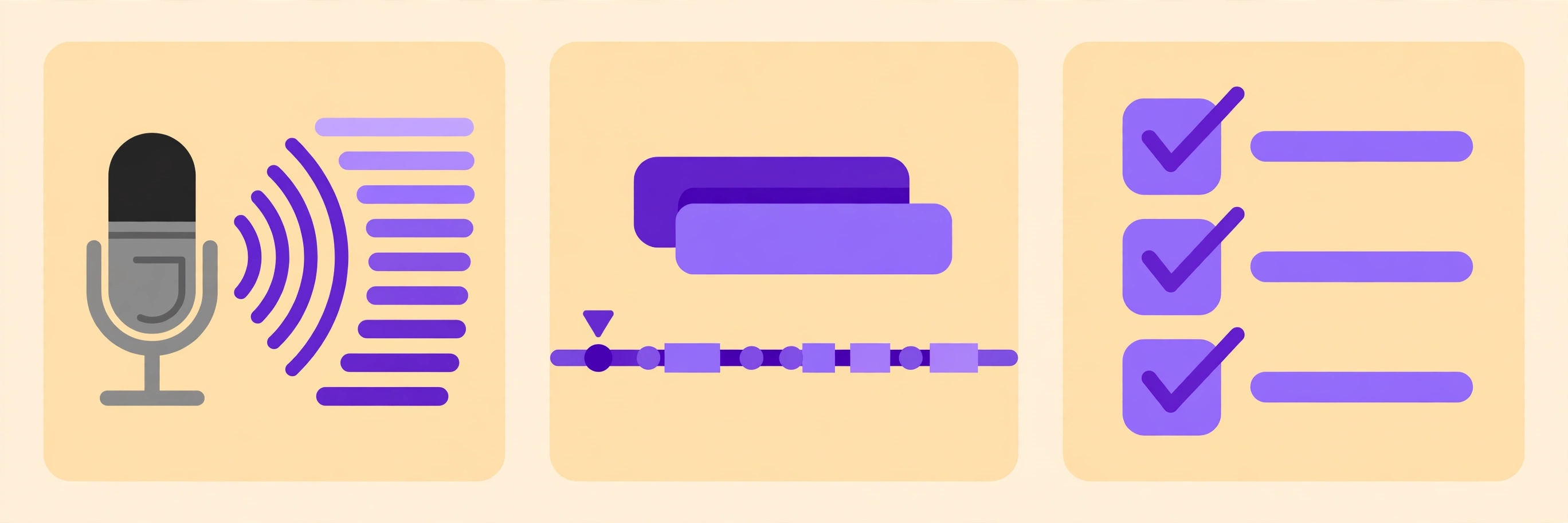
You do not need to rebuild your whole process to leave Descript. If transcription is the job, a single test recording tells you almost everything. Here is the fastest way to switch:
- Pick your worst recording. Choose a real file: background noise, two speakers, your normal accent. A tool that handles this one will handle your easy files too.
- Run it through two tools. Try Captionbench's free browser tool and one cloud option from the list, such as Otter or Notta. Compare the same five minutes side by side.
- Check the export. Export SRT or text from both. Open the SRT in a text editor and confirm the timestamps line up with the audio — a pretty transcript with broken timing is useless for captions.
- Count your monthly minutes. Add up what you actually transcribe in a month. If it fits inside a free allowance with room to spare, you are done. If not, the unlimited options — Whisper locally or Captionbench in the browser — are the honest answer, not another subscription.
- Keep Descript only if you edit by text. If you genuinely delete filler words and rearrange sentences by editing a transcript, no free tool above fully replaces that. Everything else — captions, show notes, searchable archives — the free tools cover.
What free tools won't do (and when to pay)
Honesty matters here, because the gap between "free transcription" and "Descript" is real. None of the free tools above gives you Descript's full package: text-based multitrack editing, the Overdub voice clone, Studio Sound, and filler-word removal in one place. If your daily work is editing long podcast episodes by cutting words from a transcript, paying for Descript (or a similar editor) is a legitimate business cost, not a failure to find a free alternative.
- Text-based audio editing: only Descript-style editors do this well. Free workarounds exist — edit in Audacity using the transcript as a guide — but they are manual.
- Voice cloning and filler-word removal: paid features everywhere. Free tools transcribe; they do not rewrite your voice.
- Team collaboration: free plans are mostly single-user. Shared workspaces, comments, and review flows sit behind paywalls on almost every tool listed.
- Very high accuracy on difficult audio: human transcription services still beat every automatic tool on crosstalk, heavy accents, and poor recordings — at a per-minute price.
The practical rule: pay for editing, not for transcription. Transcription is now cheap or free; the thing worth paying for is the editing workflow that saves you hours every week.
Key takeaways
- Transcription itself is free in 2026 — Descript's subscription pays for its text-based editing, not for turning speech into text.
- For captions, use a browser tool with SRT export and no minute cap; for meetings, Otter's free plan; for privacy, Whisper running locally.
- Always test with your worst recording and check the exported SRT timestamps before committing to any tool.
- Count your real monthly minutes first — the right free tier is the one your actual workload fits inside.
Need a transcript right now? Generate free timed captions with Captionbench right in your browser — no account, no uploads, SRT/VTT/TXT export included.