Video & SEO
YouTube’s Auto-Captions vs Manual SRT Uploads
Upload a video to YouTube, wait a while, and captions appear as if by magic. YouTube’s automatic captioning is genuinely convenient: it costs nothing, requires no effort, and covers an enormous number of languages. It is also, by default, a rough draft: serviceable for casual viewing, unreliable for everything else.
The question is not whether auto-captions are “good” or “bad.” It is what job you need captions to do, and whether an unreviewed machine draft is equal to it. Here is an honest comparison, and the workflow most serious creators actually use.
What YouTube’s auto-captions are
When you upload a video, YouTube’s speech recognition listens to the audio and generates a caption track automatically. You can find it in YouTube Studio under Subtitles, where it appears labeled as automatic. YouTube’s help pages explain the options plainly: you can keep the automatic track, edit it in the Studio editor, or replace it by uploading your own file.
Automatic captioning works best on clear, well-recorded speech, and it is not available for every video — very long videos, poor audio, or speech the system cannot recognize may get no automatic track at all. It is a convenience feature, not a guarantee.
Where auto-captions fall short
The core problem is accuracy. An accessibility guide maintained by university practitioners puts YouTube’s automated captions at roughly 60–70 percent accuracy when uncorrected, meaning around one word in three can be wrong. That figure describes difficult audio more than a clean studio recording, and modern models do better on easy material, but the shape of the problem hasn’t changed: names, technical terms, accents, and background noise are where the errors cluster.
Beyond wrong words, automatic tracks miss things a careful captioner includes:
- No speaker identification. In an interview, you cannot tell who said what.
- No sound information. Laughter, applause, music cues, and meaningful silence are absent — a real loss for deaf and hard-of-hearing viewers.
- Rough timing and segmentation. Automatic captions tend to break lines wherever the recognizer paused, not where a reader would want the break.
- No punctuation discipline. Sentences run together without the commas and periods that make text skimmable.
For these reasons, accessibility specialists are blunt: unreviewed automatic captions do not meet accessibility requirements. If your captions exist to serve deaf viewers, to satisfy a policy, or to be indexed accurately by search, the automatic track is a starting point, not a deliverable.
What a manual SRT upload gives you
A manual upload, a caption file you generated, corrected, and uploaded yourself, gives you complete control over every word, every timestamp, and every line break. The process in YouTube Studio takes about a minute once the file exists:
- Open YouTube Studio and select Subtitles from the left menu.
- Choose the video, then click Add language and pick the caption language.
- Under Subtitles, click Add, then Upload file.
- Select With timing and choose your
.srtfile (YouTube also accepts.vtt; the full list of supported formats is in the help center). - Publish. Your track replaces the automatic one as the default.
The file itself is plain text with honest timing: the kind of thing you can inspect, edit in any text editor, and reuse on other platforms:
1
00:00:31,000 --> 00:00:34,200
[upbeat music fades]

2
00:00:34,200 --> 00:00:37,800
MARIA: The trick is to let the dough
rest overnight.
Speaker labels, sound cues, clean breaks. Nothing about this requires professional software. It requires ten minutes of attention.
The workflow most creators actually use
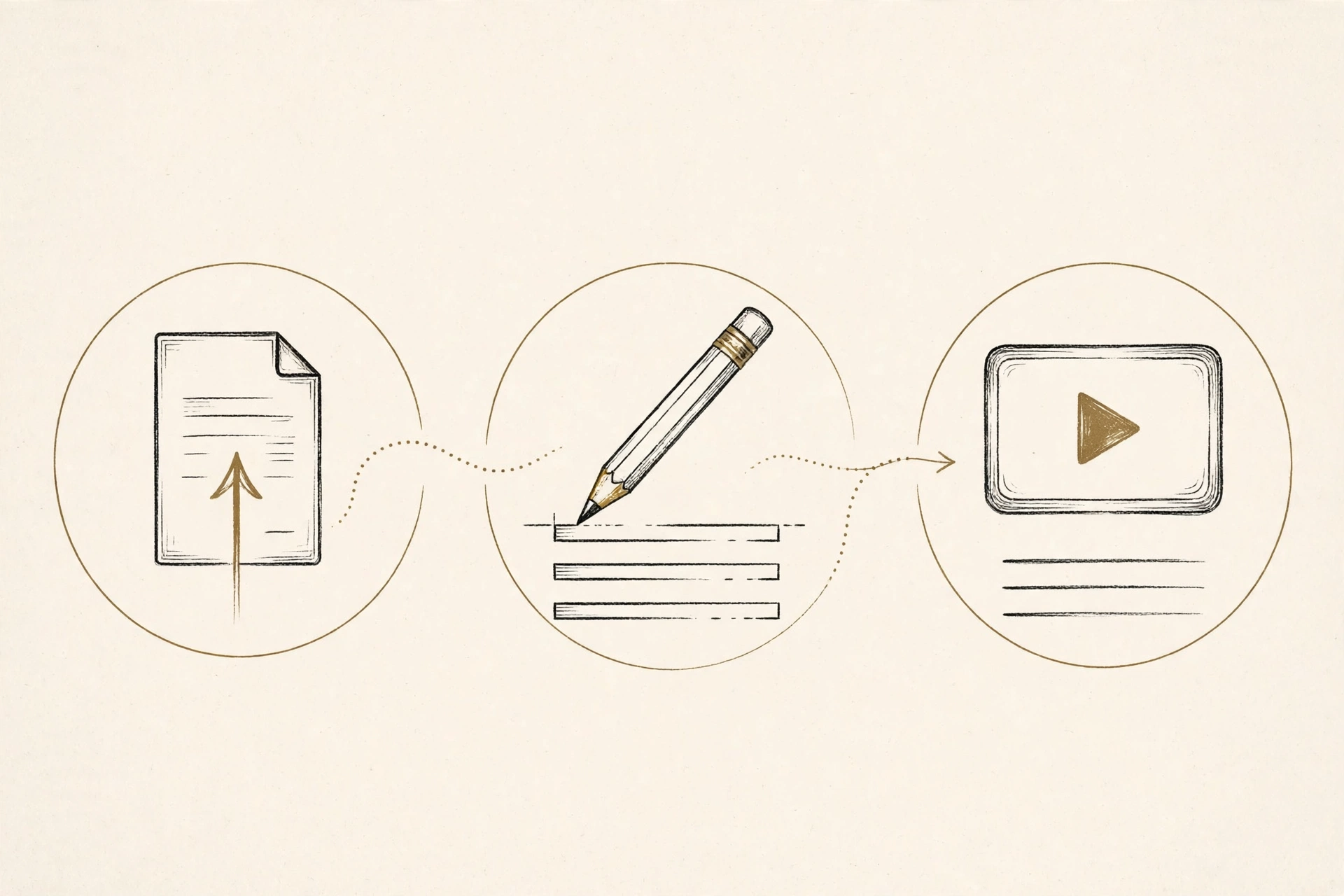
Few people type captions from scratch anymore, and few serious creators ship raw auto-captions either. The standard workflow is a hybrid:
- Generate a draft with AI. Run the video through a transcription tool (Captionbench generates the SRT free in your browser, so the file never leaves your machine).
- Correct the draft against the audio. Fix names, terms, and homophones; add speaker labels and sound cues where they matter. See our nine tips for more accurate AI captions for the highest-value fixes.
- Upload the corrected file to YouTube. One minute in Studio, and the automatic track is replaced by something you stand behind.
This gives you the speed of automation and the quality of a human pass, for roughly the cost of a coffee break. It is also the only approach that holds up if anyone ever asks whether your captions are accurate. Because you checked.
Side-by-side comparison
| YouTube auto-captions | Manual SRT upload | |
|---|---|---|
| Effort | None | Generate + one review pass |
| Word accuracy | Rough; ~60–70% on difficult audio | As accurate as your review |
| Speaker labels | No | Yes, if you add them |
| Sound cues ([music], [laughter]) | No | Yes, if you add them |
| Timing & line breaks | Machine-placed | Yours to control |
| Meets accessibility needs | Not on its own | Yes, when properly done |
| Reusable on other platforms | Stuck on YouTube | Upload the same file anywhere |
| Cost | Free | Free, plus your time |
A note on YouTube’s built-in editing tools
Uploading a file is not the only path. YouTube Studio also lets you edit the automatic track in place: open Subtitles, duplicate the automatic captions, and correct them line by line in the editor. For short videos, this is perfectly reasonable and keeps everything inside YouTube.
Studio also offers “Transcribe and auto-sync”: you type (or paste) the full transcript as plain text, and YouTube aligns it to the audio automatically. This is a good middle option when you already have an accurate transcript, say from a script or a corrected AI draft, but no timing information. The tradeoff is that you cannot take the result with you; it lives only on YouTube, unlike an SRT file you keep.
Key takeaways
- YouTube’s automatic captions are a free convenience, but unreviewed they are a rough draft, roughly 60–70 percent accurate on difficult audio, with no speaker labels or sound cues.
- Uncorrected auto-captions do not meet accessibility requirements and feed search engines error-filled text.
- A manual SRT upload takes about a minute in YouTube Studio (Subtitles → Add language → Upload file → With timing) and gives you full control.
- The practical standard is hybrid: AI-generate the draft, correct it once against the audio, then upload. Speed and accuracy together.
- A corrected SRT is portable: the same file works on Facebook, LinkedIn, Vimeo, and your own site.
Make the draft the easy part: generate your SRT free in Captionbench, spend ten minutes correcting it, and upload a caption track you can stand behind.