Video & SEO
SRT vs VTT: Key Differences and When to Use Which

Sooner or later, every video creator meets the same small dilemma: the upload form asks for a caption file, and offers a choice between .srt and .vtt. The two files look nearly identical when you open them. Picking the wrong one rarely breaks anything. Picking the right one saves you a conversion step and, on the web, gives you styling options that SRT cannot.
Here is what each format actually is, where they differ, and a simple rule for choosing.
SRT: the one everything accepts
SubRip (.srt) is the oldest and most widely supported caption format. A cue is a number, a time range, and the text. Nothing else:
1
00:00:04,200 --> 00:00:07,800
Welcome back to the workshop.

2
00:00:08,000 --> 00:00:11,500
Today we are fixing a wobbly chair.
That is all an SRT file holds: sequence numbers, timestamps, and text. There are no colors, no fonts, no positions. The player decides how the captions look. Note the comma before the milliseconds (00:00:04,200). That comma is the single most common source of “my caption file won’t upload” errors when people hand-edit these files.
Use SRT when you want a file that simply works: desktop players like VLC, video editors, TV boxes, and most upload forms (YouTube, Facebook, and LinkedIn all accept it). If you keep one archival copy of your captions, make it SRT. It is the interchange format the whole ecosystem agrees on.
VTT: the web format
WebVTT (.vtt, short for Web Video Text Tracks) was designed for the browser. It began at the WHATWG and was standardized by the W3C as the official caption format for HTML5 video, with the full specification published at w3.org/TR/webvtt1. The HTML5 <track> element reads this format and no other. So if your captions play inside a web page’s own player, you need VTT.
The same two cues in VTT:
WEBVTT

00:00:04.200 --> 00:00:07.800
Welcome back to the workshop.

00:00:08.000 --> 00:00:11.500
Today we are fixing a wobbly chair.
Three differences from SRT: the file must start with the WEBVTT header, milliseconds come after a period instead of a comma, and cue numbers are optional. Beyond that, VTT can carry things SRT cannot: cue settings for position, line, and alignment; voice tags like <v Speaker> for identifying who is talking; and styling through CSS, including bold, italics, and colors.
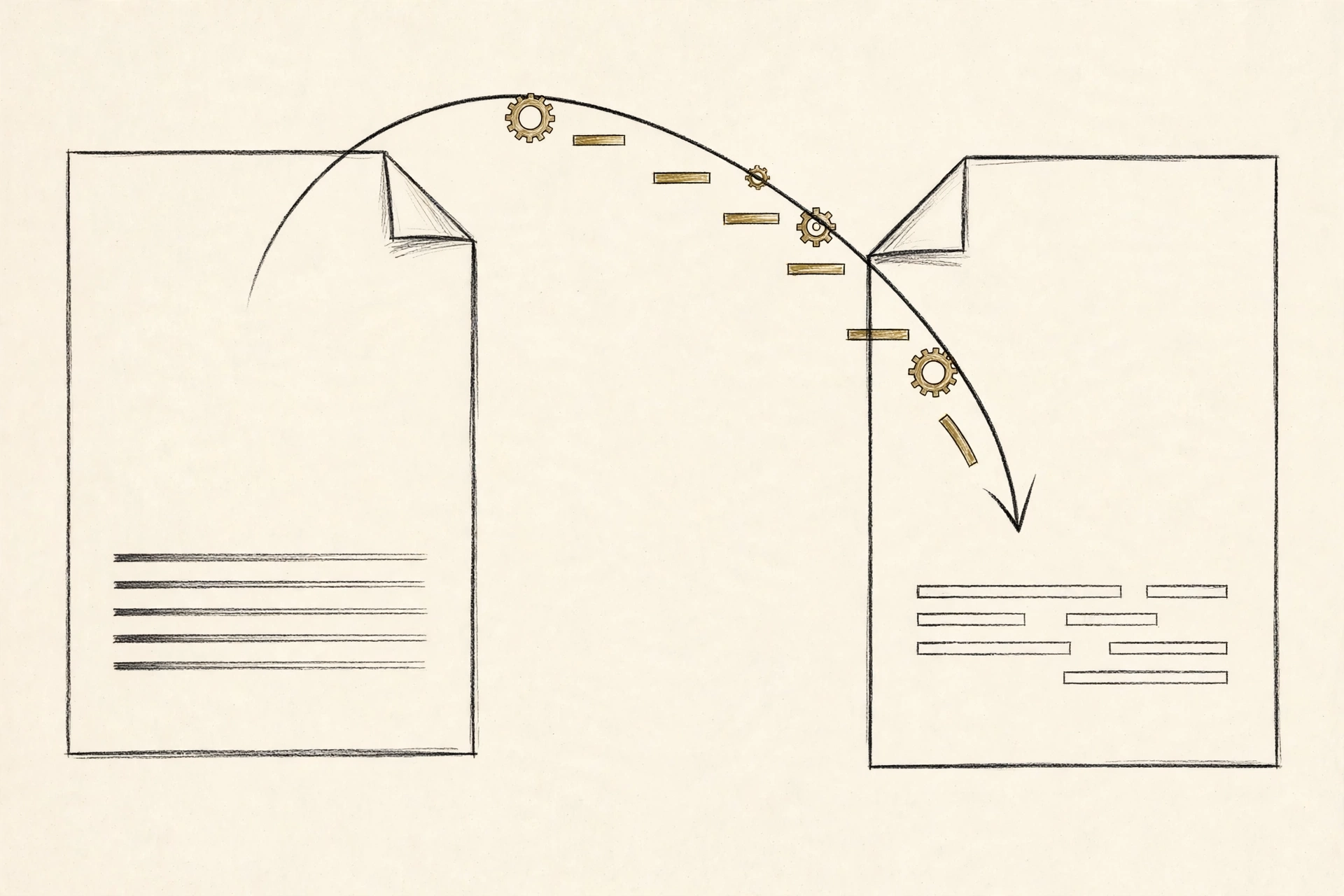
The differences, side by side
| SRT | VTT | |
|---|---|---|
| Header line | None | WEBVTT required |
| Cue numbers | Required | Optional |
| Milliseconds separator | Comma (,) | Period (.) |
| Styling (bold, italics, color) | Not supported | Supported via CSS |
| Positioning cues on screen | No | Yes (cue settings) |
| Speaker voice tags | No | Yes (<v>) |
| Metadata / chapters | No | Yes |
HTML5 <track> | No | Yes — the only format it reads |
| Desktop players & editors | Widest support | Good, but less universal |
One honest caveat: VTT’s styling support varies by browser and player. The format allows it, but not every player honors every cue setting. Test styled captions in the player your audience actually uses before relying on the styling.
Converting between SRT and VTT without breaking things
Because the formats are close cousins, conversion is mostly mechanical. Going from SRT to VTT:
- Add
WEBVTTas the very first line of the file, followed by a blank line. - Replace the comma in every timestamp with a period (
00:00:04,200becomes00:00:04.200). - Delete the cue sequence numbers (optional, but conventional for VTT).
- Save as UTF-8 with a
.vttextension.
Going the other way, VTT to SRT, reverse the process: drop the header, swap periods back to commas, and number the cues sequentially. One thing to watch for: VTT allows timestamps without the hours component (00:04.200), while SRT conventionally always includes hours (00:00:04,200). If your VTT file uses short timestamps, expand them when converting.
Most subtitle editors, including the free Subtitle Edit, do this conversion in one click. If you generate your captions with Captionbench, you get a clean SRT that converts to VTT without surprises.
Common mistakes to avoid
- Forgetting the WEBVTT header. A VTT file without its header line is just a text file; browsers will refuse to load it as a track.
- Mixing up the decimal separator. Comma in VTT or period in SRT is the most common reason a valid-looking file fails to import.
- Wrong text encoding. Save caption files as UTF-8, especially if they contain accented characters or non-Latin scripts. Files saved in a legacy encoding show up as mojibake on some players.
- Missing blank lines between cues. Both formats use a blank line to separate one cue from the next. Without them, parsers merge cues or reject the file.
When to use which: a simple rule
- Uploading to YouTube, Facebook, LinkedIn, or X? Either works — both platforms accept SRT and VTT. SRT is the simpler choice and the one most guides assume.
- Embedding video on your own website with an HTML5 player? Use VTT. The
<track>element will not read SRT. - Archiving your captions, or handing them to an editor? Use SRT. It opens everywhere and converts cleanly to anything else.
- Need styled or positioned captions on the web? Use VTT, and check the rendering in your target player.
The practical workflow most creators settle on: author and archive in SRT, then generate VTT from it when the web needs it. Converting is a small, mechanical transform: add the WEBVTT header, swap the comma for a period in timestamps, and drop the cue numbers. This format guide walks through the same conversion with examples.
Key takeaways
- SRT is the universal interchange format: numbered cues, comma-separated milliseconds, no styling — accepted by virtually every player, editor, and upload form.
- VTT is the W3C web standard:
WEBVTTheader, period-separated milliseconds, optional cue numbers, plus styling, positioning, voice tags, and metadata. - The HTML5
<track>element reads VTT and nothing else. Web embeds need VTT. - Rule of thumb: author and archive in SRT; generate VTT when publishing to the web.
- VTT styling support varies by player. Test styled captions where your audience will watch.
Captionbench generates clean SRT files free in your browser — a solid starting point whether you upload as-is or convert to VTT for the web. For YouTube specifically, see our guide to auto-captions vs manual SRT uploads.